See Every After-School Stop on the Dismissal Board
The Snapshot
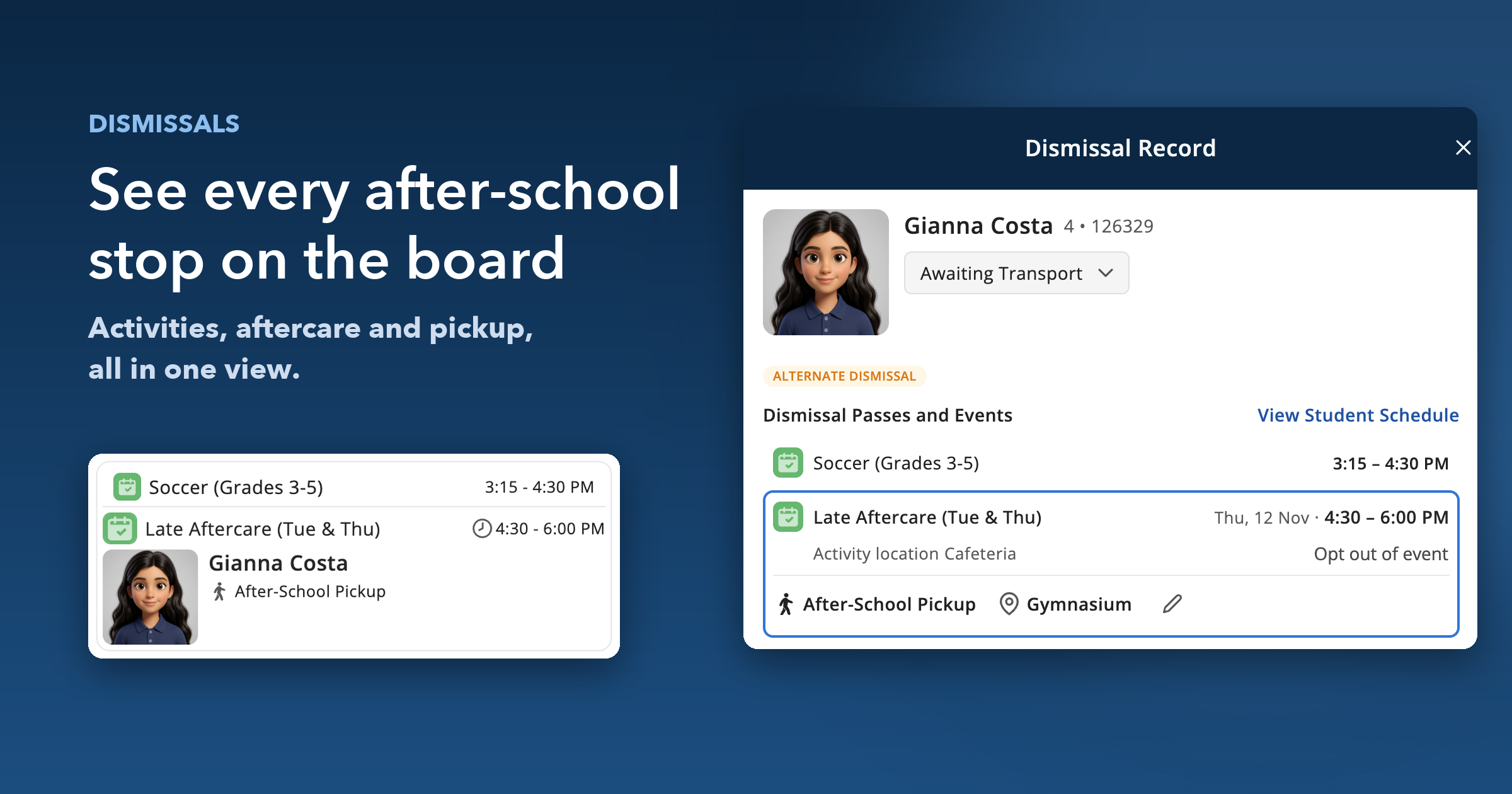
The Dismissal board now shows all of a student's after-school passes and events, not just the one that sets pickup. If a student goes from soccer to late aftercare, staff see both.
What's New
Dismissal cards list a student's earlier passes and events above the one that sets pickup. That one still shows its time, transport option and pickup details.
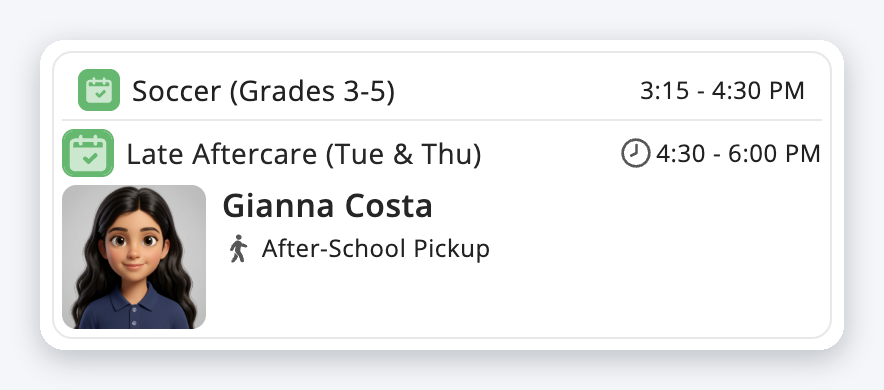
Open a student's Dismissal Record and the new Dismissal Passes and Events section lists everything on their afternoon in time order. The event that sets pickup is highlighted, with its activity location, transport option and pickup location, and you can still edit it or opt the student out from there. View Student Schedule takes you to their full day.
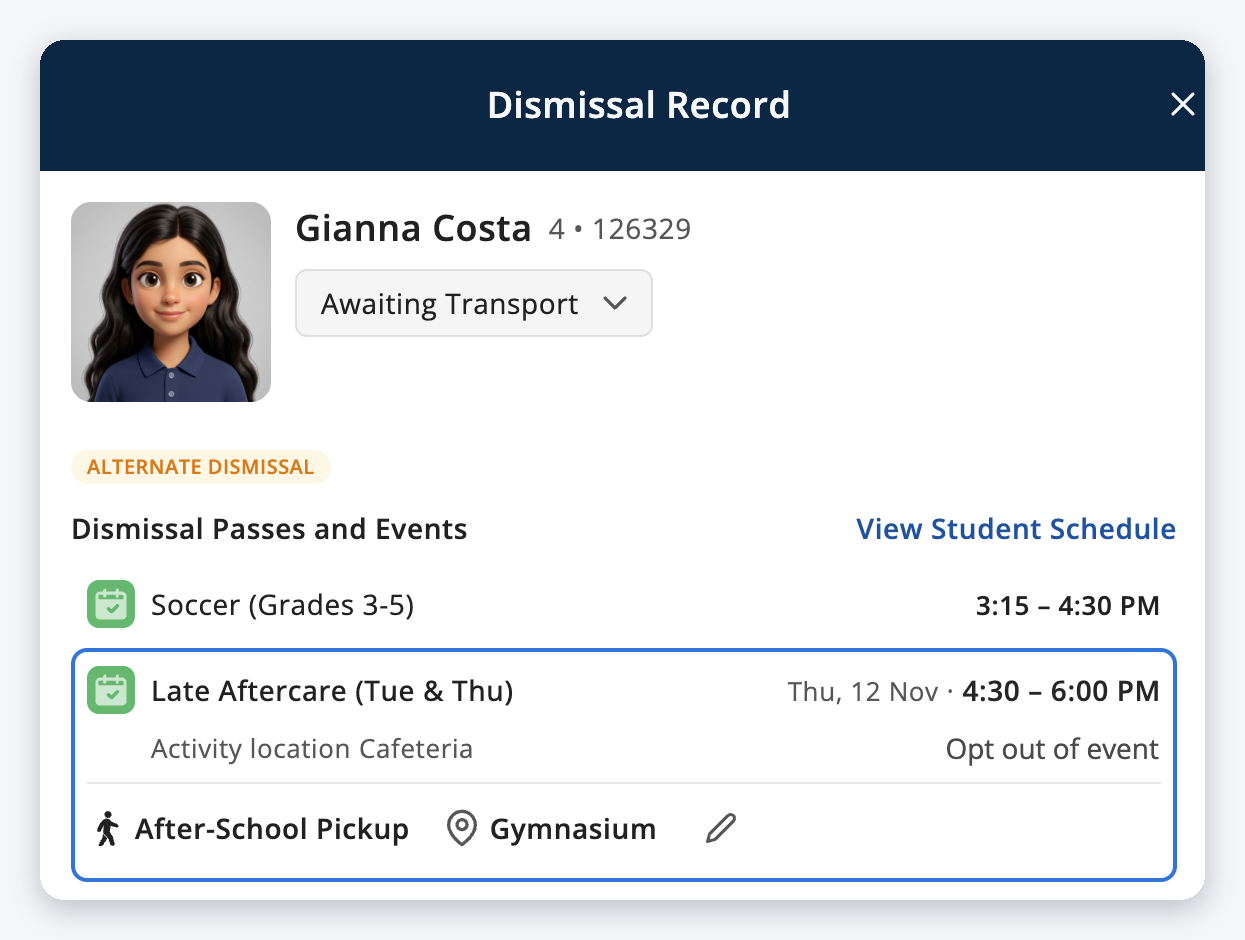
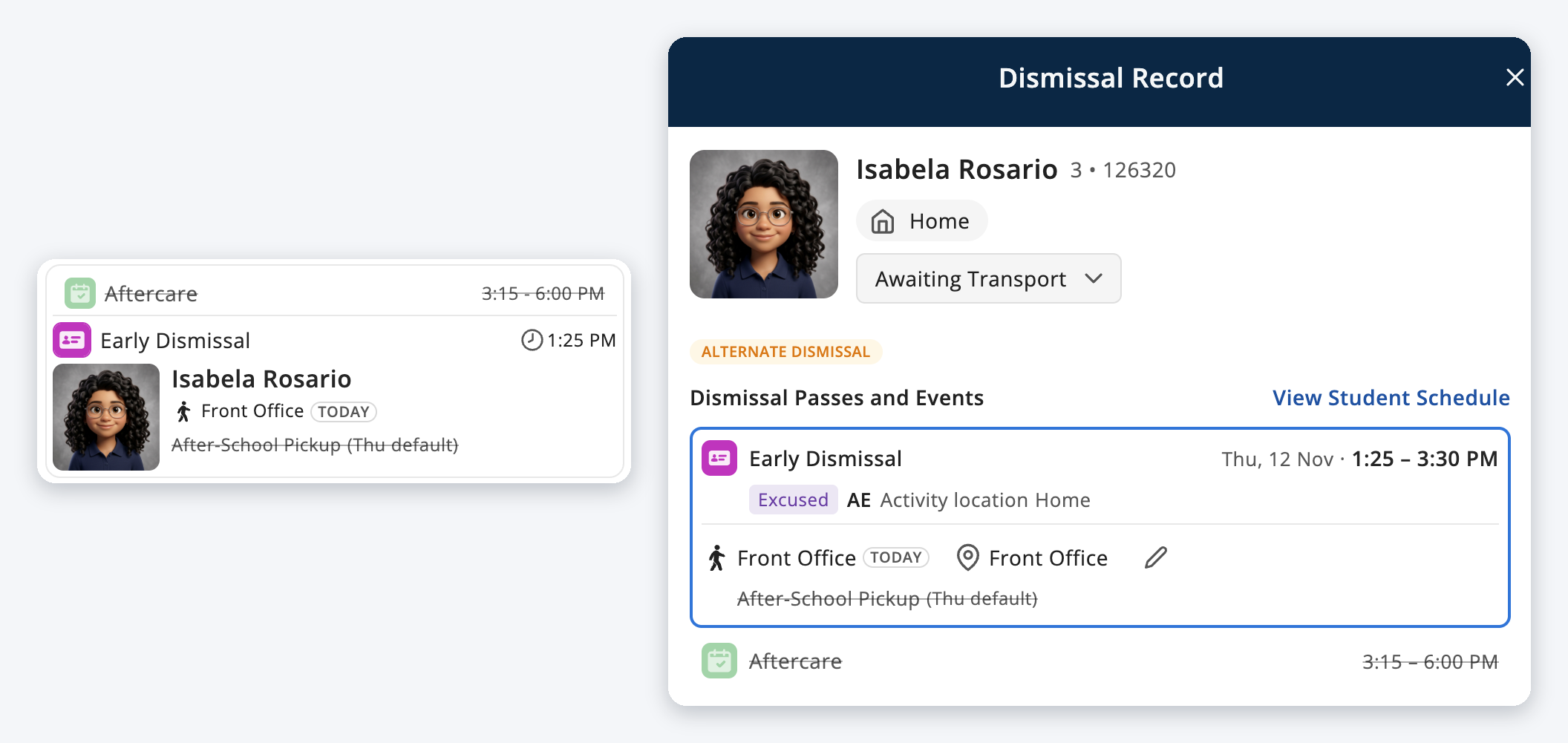
If a student has an early dismissal, it becomes the event that sets pickup, and the after-school plans they would have had are shown struck through. That covers their events, like Aftercare, and their usual transport, like their After-School Pickup default. If a student is marked absent for the full day, their after-school plans are struck through in the same way.
Why It Matters
Before, the board only showed the last stop of a student's afternoon, so finding out where they were in between meant opening the event list or checking the student's schedule. Now the whole afternoon is on the card, so staff can see where every student needs to be until pickup without leaving the Dismissal board. When plans change, the old ones are struck through, so staff have a clear view of what's changed and which plan applies today.
Next Steps
On the web and Android, this is live now. On iPhone or iPad, update the Orah app to version 7.52 or above
Open the Dismissal board
Check the card of a student with more than one after-school pass or event, then open their Dismissal Record
Questions? Reach out to your CSM.