Build Attendance Alerts on a Visual Canvas
The Snapshot
You can now build attendance alerts on a simple visual canvas. One alert can email students, parents and staff in a single shared thread and add a behavioural note, like a detention, to the student's record. Set it up once and it works whether you take attendance in Orah or bring it in from your student information system.
What's New
The new builder lays your alert out from left to right, so you can read it like a sentence: what sets it off, which students and classes count, when it sends, and what happens next. Each block sums up its settings in everyday words, like "4 times in total" or "Resets when a new week starts", so you can check an alert at a glance. Click a block to change it, and a side panel opens with a short explanation and an example for each choice. Preview exactly what the email, SMS, push notification and note will say for a student, and undo or redo as you go — your changes are kept until you click Save Alert.
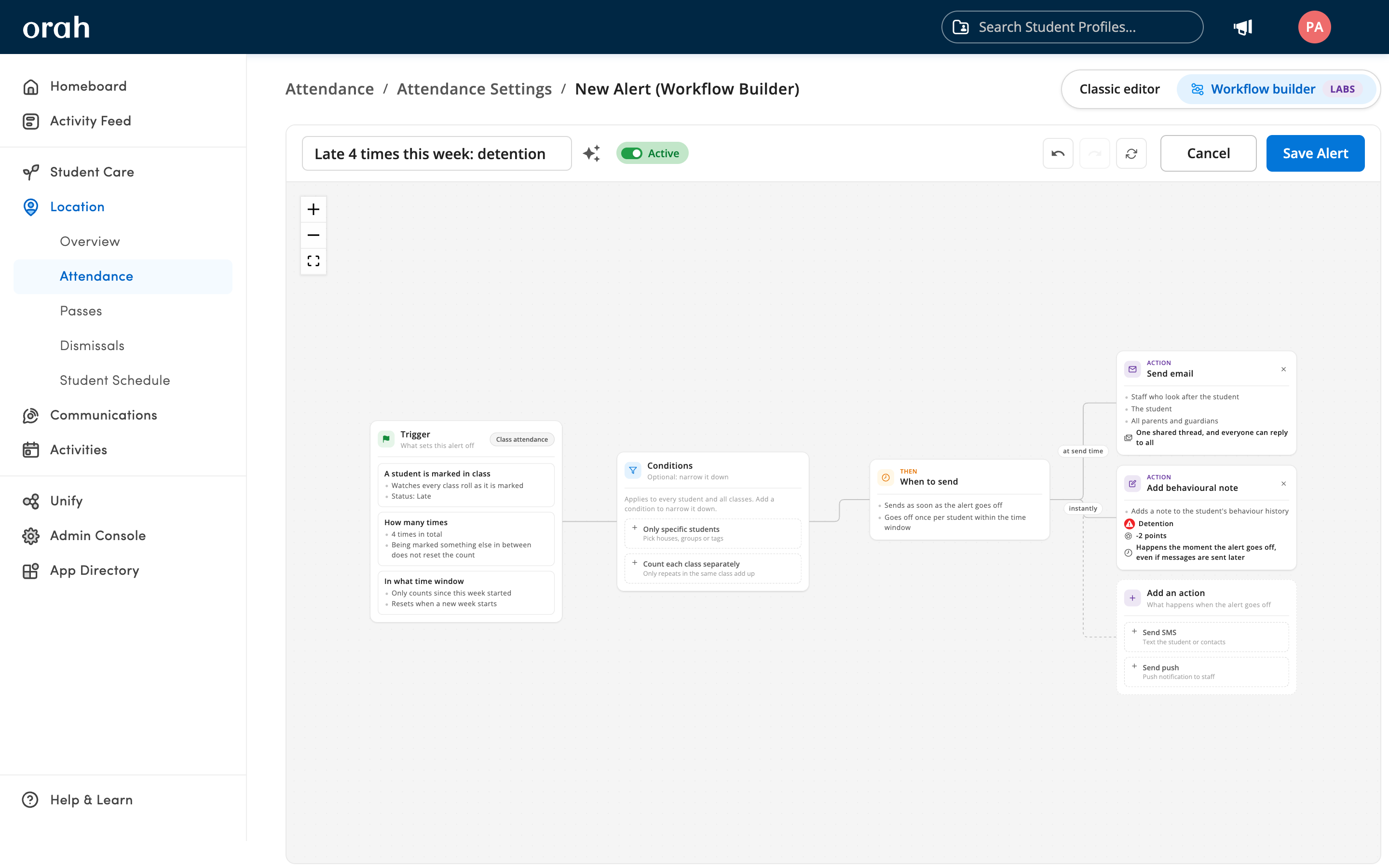
Start from a ready-made trigger, then choose the statuses to watch, how many times, in a row or in total, over a day, a week or a term. Count every class, each class on its own, or only the classes you pick — and if your classes come from your student information system, you can filter by class type. Write your own subject and message, and the student's name, the date and what set the alert off fill in for you. Combine assigned staff, class teachers, specific staff and staff roles, and add SMS for students and parents or push notifications for staff from the same alert. Add only the actions you need, and anything that still needs attention is flagged on its block before you save.
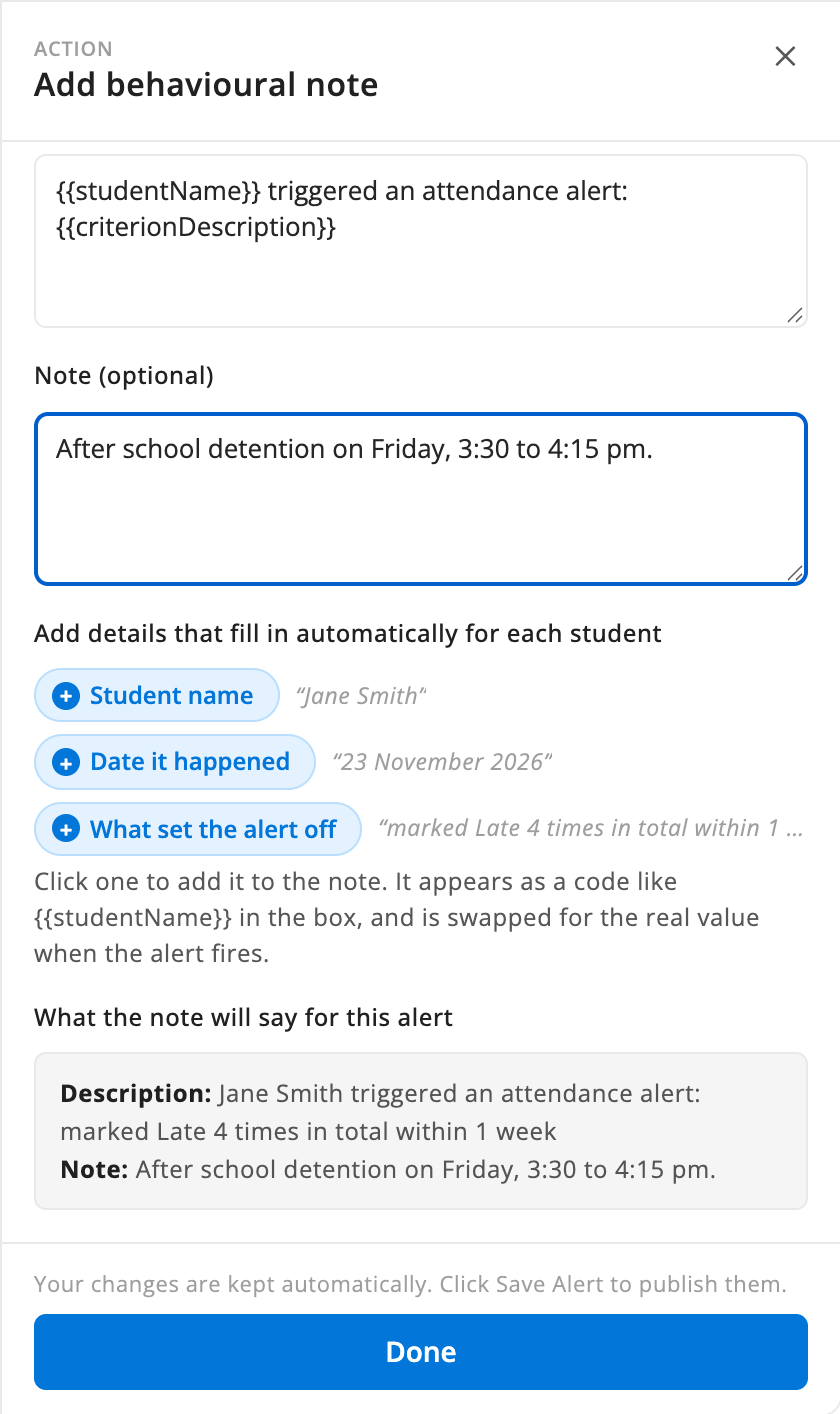
An alert can also add a behavioural note to the student's record the moment it goes off — for example, a detention on the fourth late this week, with the category's points included.
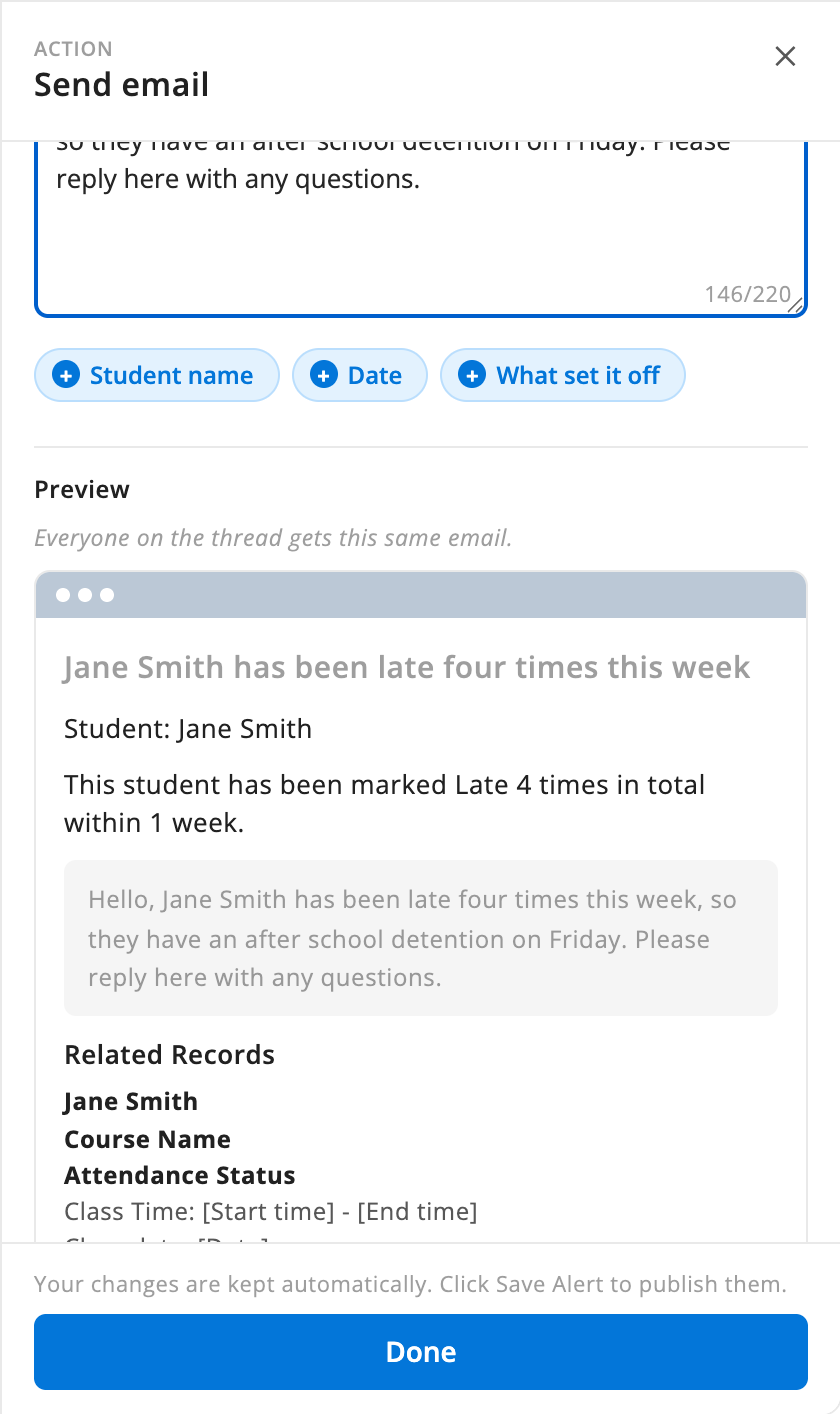
The student, their parents and the staff who look after them can all be on one email thread. Everyone sees the same message, anyone can reply to everyone, and staff get the replies directly. No forwarding, no chasing separate threads, and no wondering whether the parents saw it.
Want a warning at three lates and a detention at four? Build one alert, copy it, change the count and leave out the detention. Alerts built this way carry a Workflow tag in your alerts list.
Why It Matters
When a student starts arriving late, the right people hear about it, the conversation happens in one place, and the follow-up is recorded without anyone counting by hand or retyping a detention. Deans and heads of year see attendance concerns in the student's behaviour history straight away, parents see the same message as staff, and a full escalation ladder takes minutes to build.
Next Steps
- Ask your Customer Success manager to turn on the new builder for your school
- Go to Attendance > Attendance Settings > Alert Settings and click Add Alert
- Choose a trigger, then pick the students and classes that count
- Use "Add an action" to add an email, SMS, push notification or behavioural note
- Check the previews, fix anything flagged on a block, then click Save Alert
- Copy the alert to build the next step of your ladder
Note: Your existing alerts keep working exactly as they do today, and the classic alert form is still there whenever you want it. Adding behavioural notes to alerts needs the Nurture package.
Give it a try, and reach out to your CSM with any questions.