Give Each Division Its Own Roll Types
The Snapshot
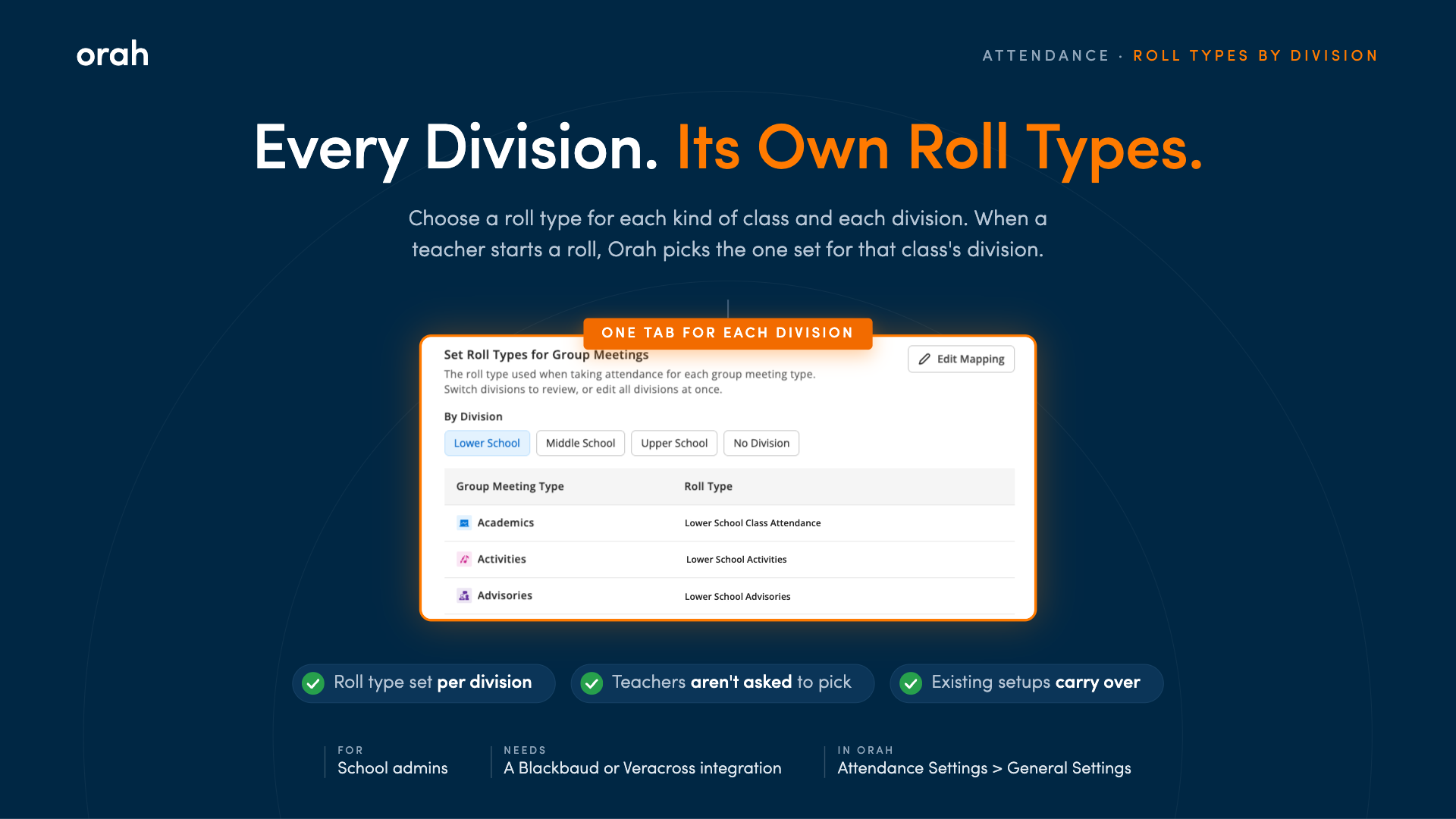
You can now choose a different roll type for each division. When a teacher starts a roll, Orah picks the right one automatically, so Middle School teachers see Middle School options and Upper School teachers see theirs.
What's New
Open Attendance Settings > General Settings and scroll down, you'll find a tab for each division. Choose a roll type for every kind of class, like Academics or Advisory, then save. A No Division tab covers any class that isn't linked to a division. Your existing assignments carry over to every division automatically, so there's nothing to redo. Division tabs are available for schools using Veracross or Blackbaud.
Why It Matters
Teachers start a roll and the right roll type is already selected. No scrolling past codes meant for another division, and no picking one every time. Each division can run on its own attendance codes, so your Lower School and Upper School setups can each fit their own day.
Next Steps
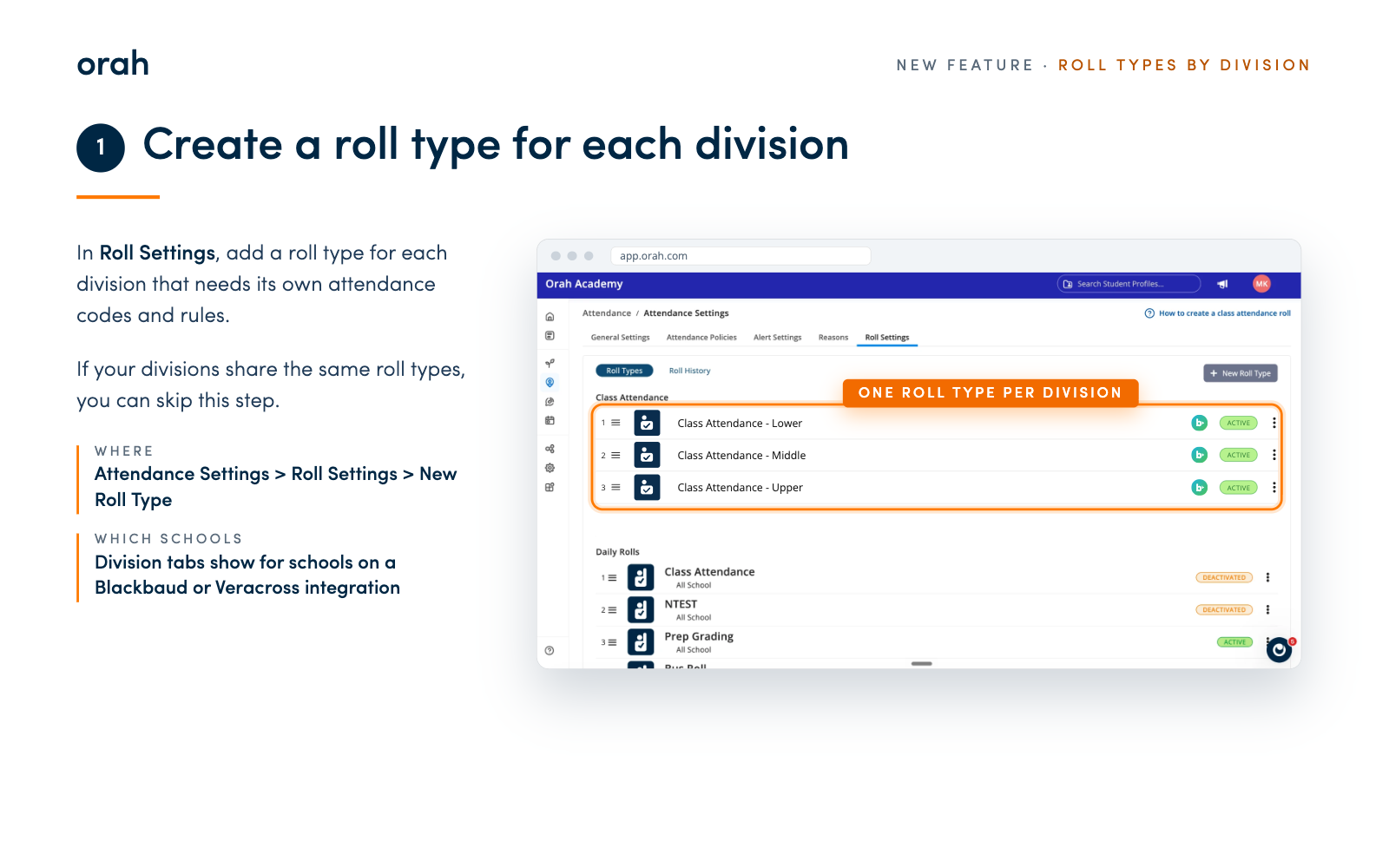
Create a roll type for each division in Roll Settings, if your divisions use different ones
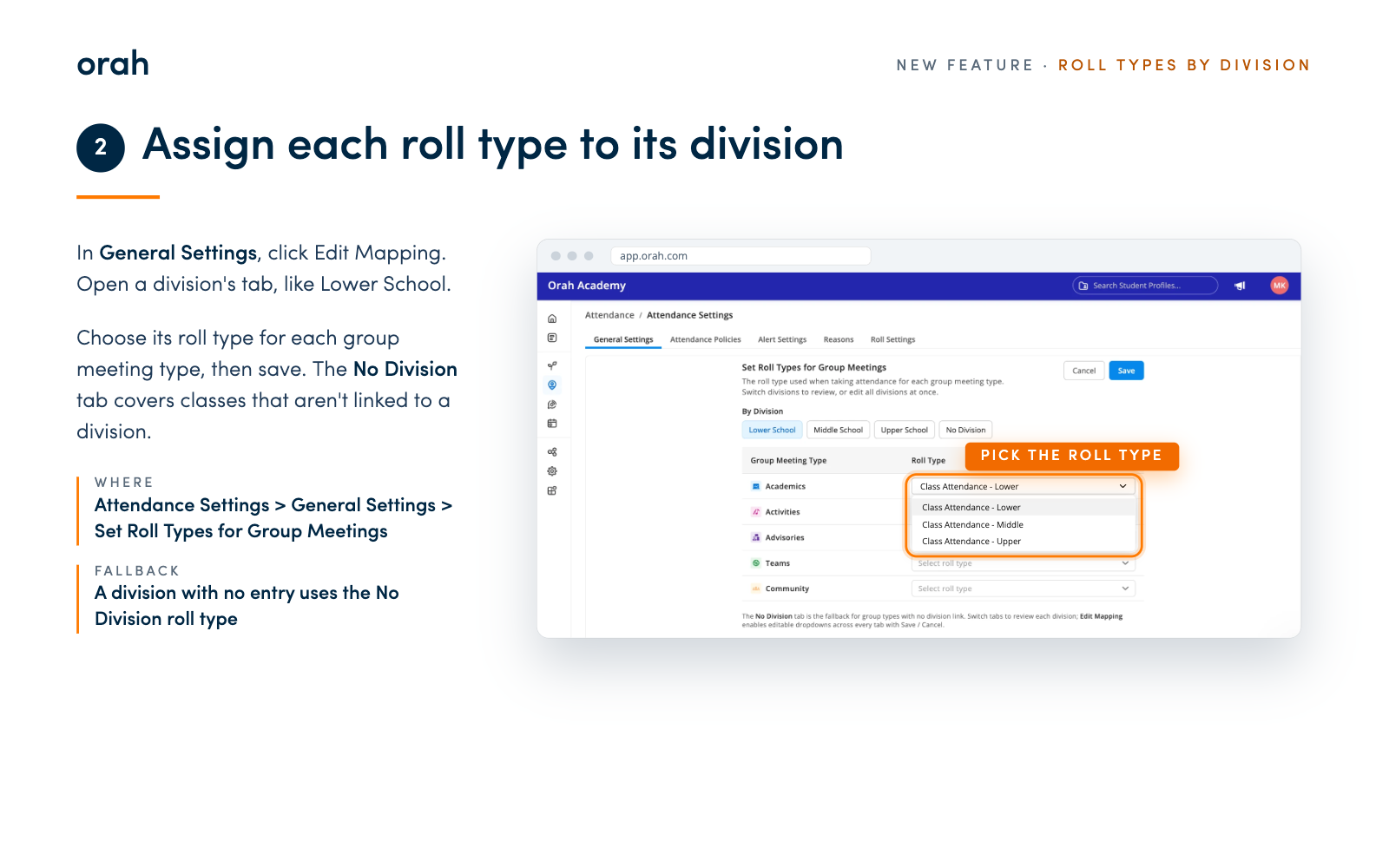
Go to Attendance Settings > General Settings > Set Roll Types for Group Meetings and select Edit Mapping
Open each division tab and choose a roll type for every group meeting type
Fill in the No Division tab too, so any scheduled class without a division is covered
Save, then start a roll as a teacher in each division to see it in action
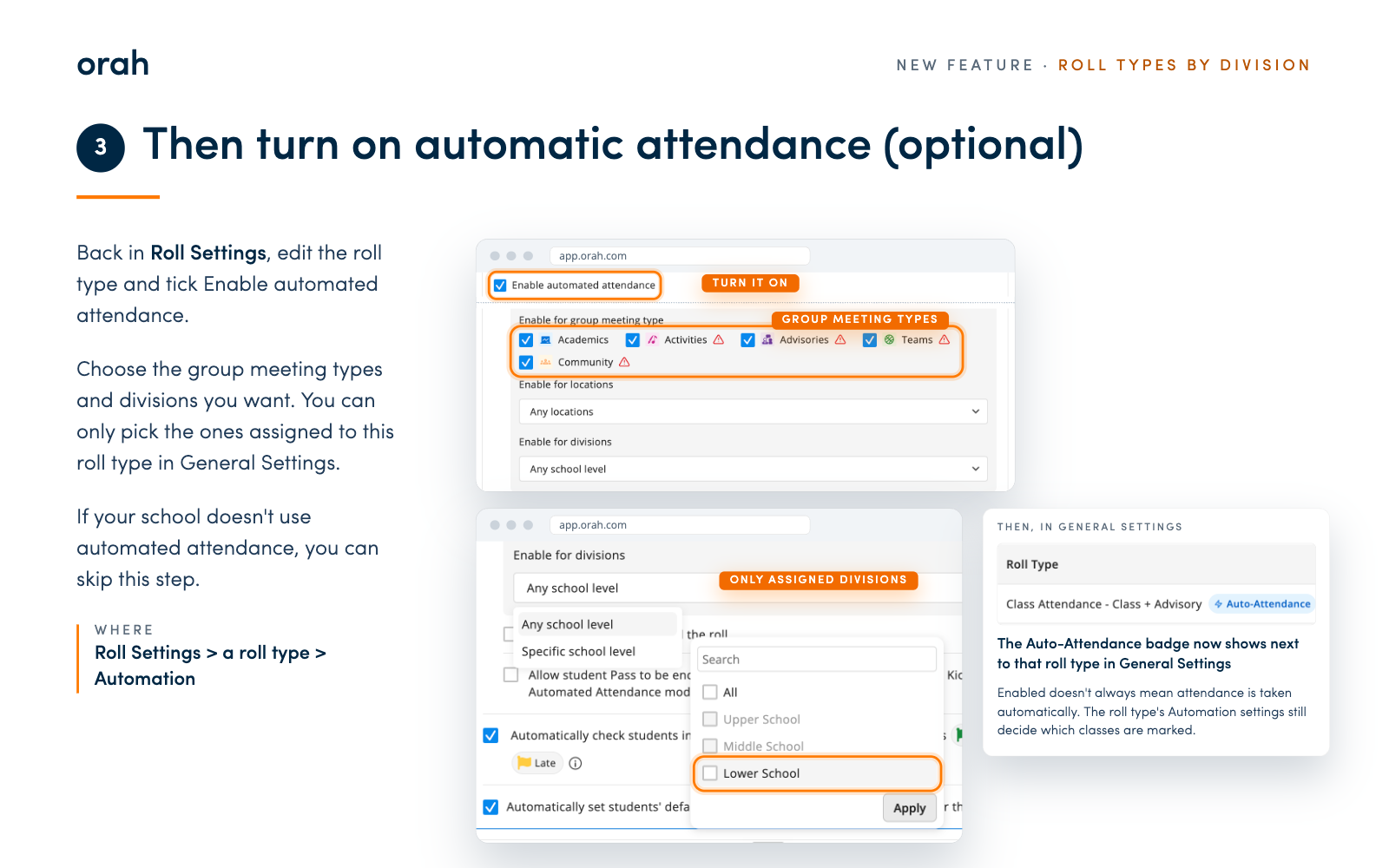
Good to know: if a division has no roll type set up for a class type, teachers in that division will be asked to pick one. Kiosk automated attendance rules are still managed on each roll type's own settings page.
Give it a try, and tell us what you'd like divisions to do next. Questions about setup? Reach out to your CSM.