See Attendance One Division or House at a Time
The Snapshot
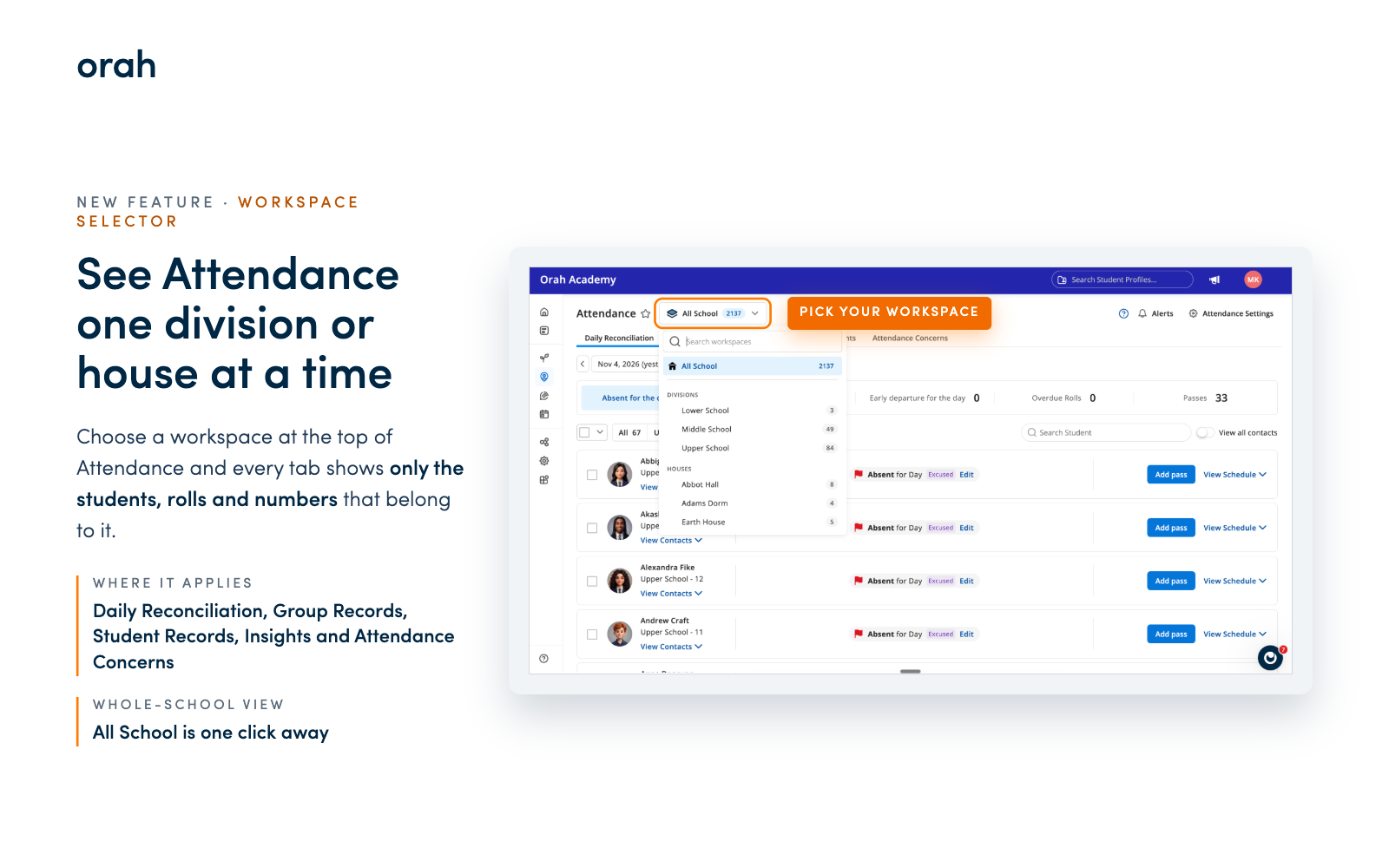
Attendance now has a workspace selector at the top of the page. Pick All School, a division or a house, and everything on the page follows your choice.
What's New
Choose a workspace and every attendance tab shows only the students, rolls and numbers that belong to it. That covers Daily Reconciliation, Group Records, Student Records, Insights and Attendance Concerns.
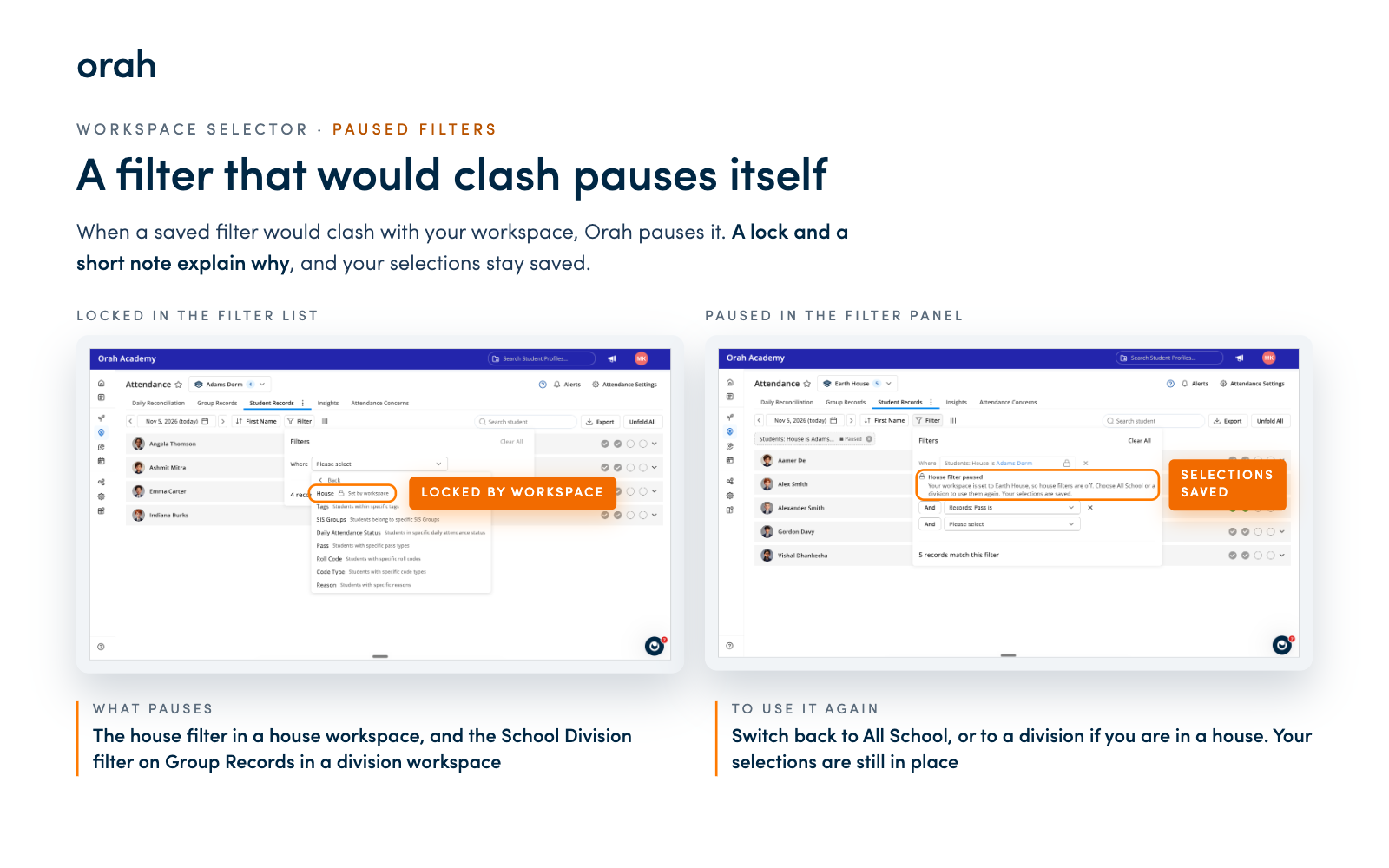
If one of your saved filters would clash with your workspace, Orah pauses it for you. A house filter pauses when your workspace is a house, and the School Division filter on Group Records pauses when your workspace is a division. Paused filters show a lock and a short note explaining why. Your selections stay saved and switch back on when you return to All School (or to a division, if you were in a house).
Why It Matters
Heads of a division or a house can open Attendance and see their own students straight away. The numbers reflect the group you manage, not a blend of the whole school. A student belongs to one house, so a house filter inside a house workspace could only ever show an empty page. Pausing it means you always see real records, and you always know why a filter is off. When you need the whole-school view, All School is one click away.
Next Steps
Open the Attendance page
Choose a workspace from the selector at the top
Browse the tabs and Insights, and watch them follow your choice
Spot a paused filter? Switch back to All School to use it again, with your selections still in place
Give it a try, and if you have questions, reach out to your CSM.