Dismissals: Plan, Run and Verify Every Pickup
Dismissals is a new Orah module to plan, run and record every school dismissal, with a live board that shows where each student is from classroom to car or bus. Parents manage pickup plans and designated contacts in the Orah Family App, and staff verify every handover with a QR scan and optional signature in the Orah Staff App.
Early Dismissal passes, Full Day Absent passes and after-school events automatically adjust when and how each student is dismissed, so the board always reflects the day as it actually is.
We designed this module closely with schools. Our first rollout schools have used it every day since the start of the school year, and their feedback has shaped how it works today.
Why We Built Dismissals
Orah already helps day schools keep track of students through the school day, from morning attendance and class rolls to passes and early departures. Dismissals completes that picture, covering the moment duty of care passes from the school to the family, so the right child leaves with the right adult, every time.
At 3:05 PM, staff can see who is still in class, who is heading to the car line and who has been picked up. Every handover is recorded: who released the student, to whom and when. No cardstock or spreadsheets to keep up to date.
Set Up Your Week Once
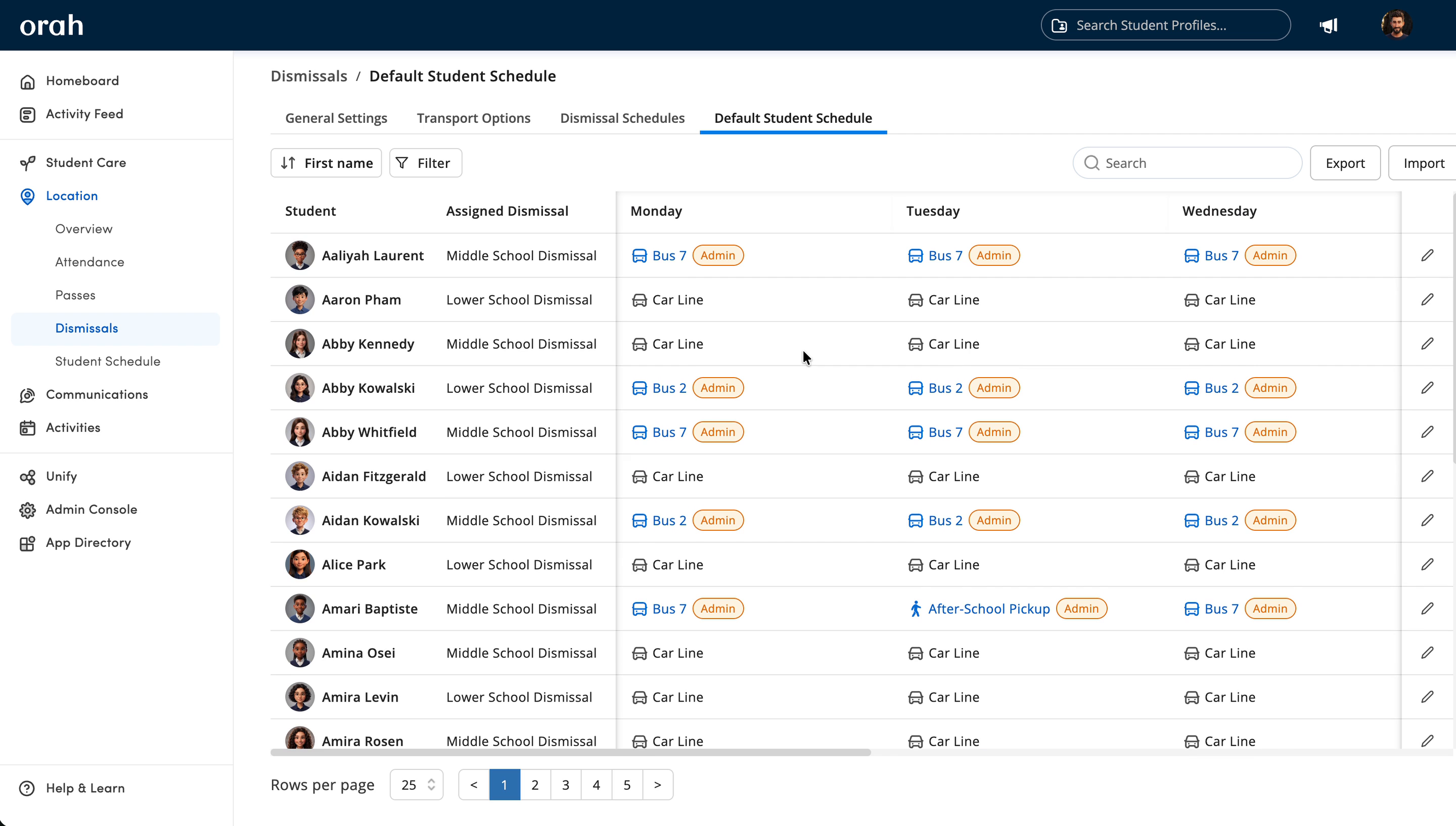
Admins set up dismissal schedules for each group of students, with the days and times they run and the transport options available, from the car line and bus routes to walkers and after-school pickup.
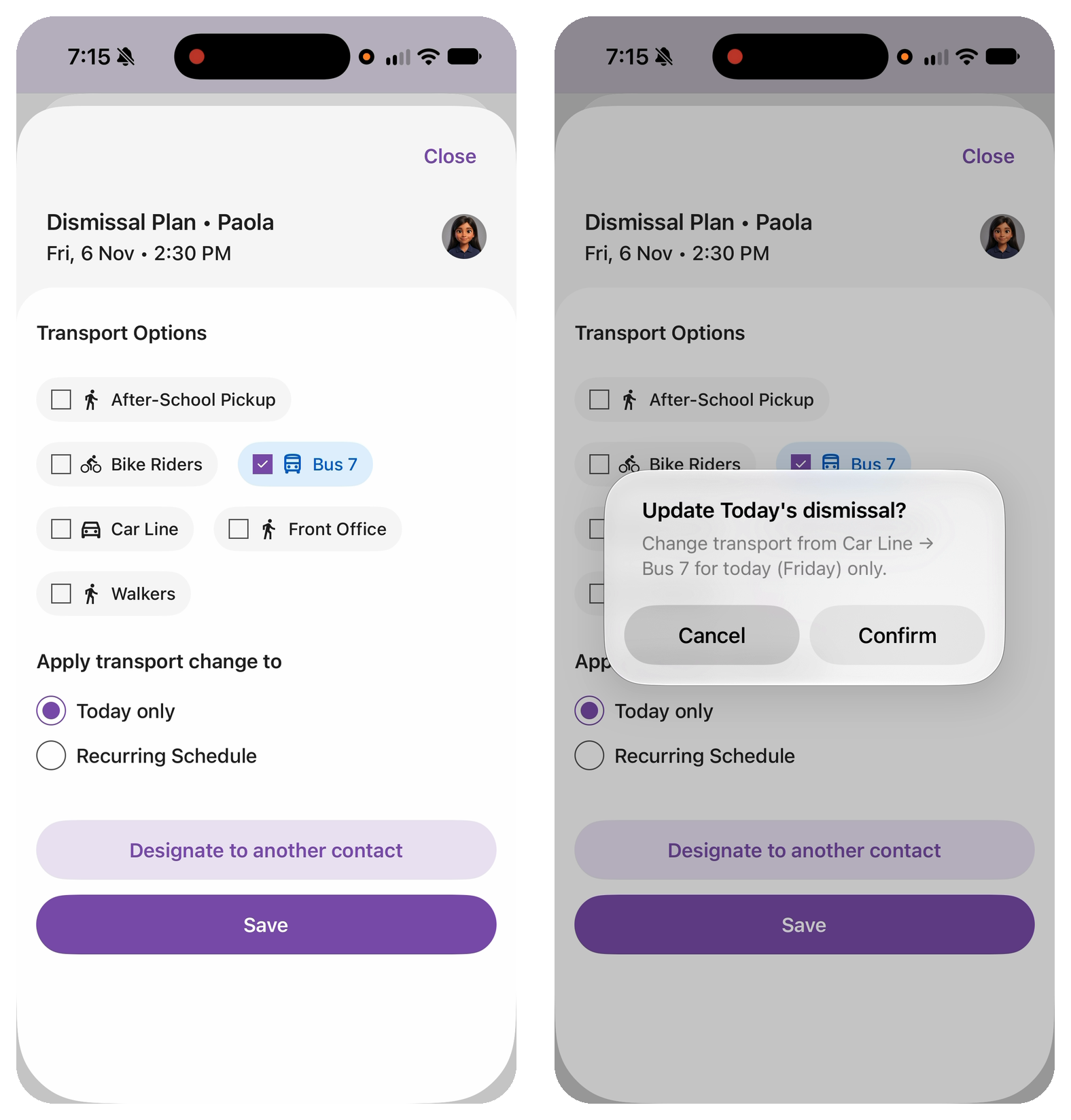
Each student has a default weekly plan. Parents can change it in the Orah Family App for a single day or every week, up to a cutoff your school sets. Staff can change any plan from desktop or mobile, right up to the bell.
Staff changes are recorded, not lost: Orah keeps who made the change and what it replaced.
When the Bell Goes
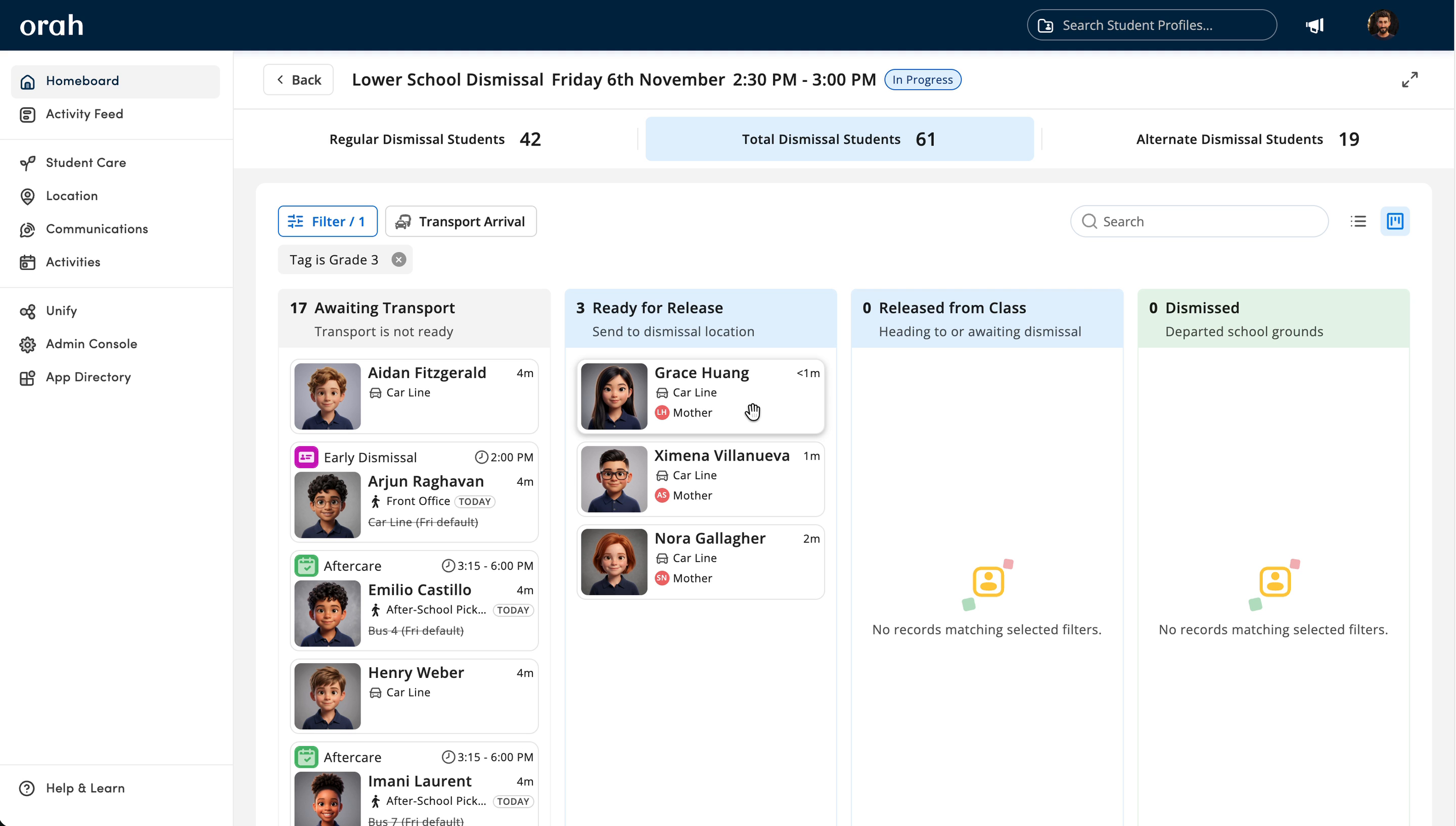
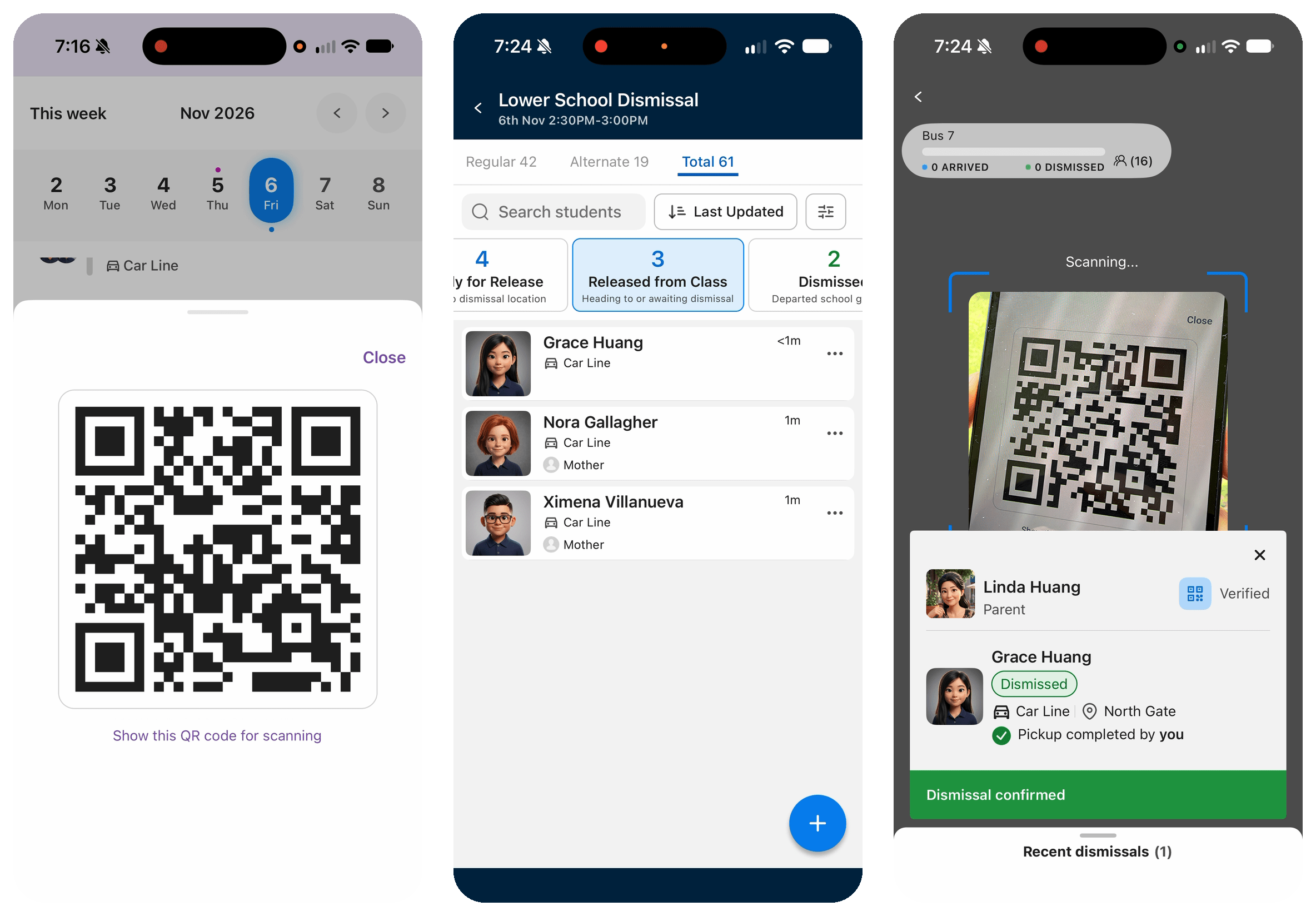
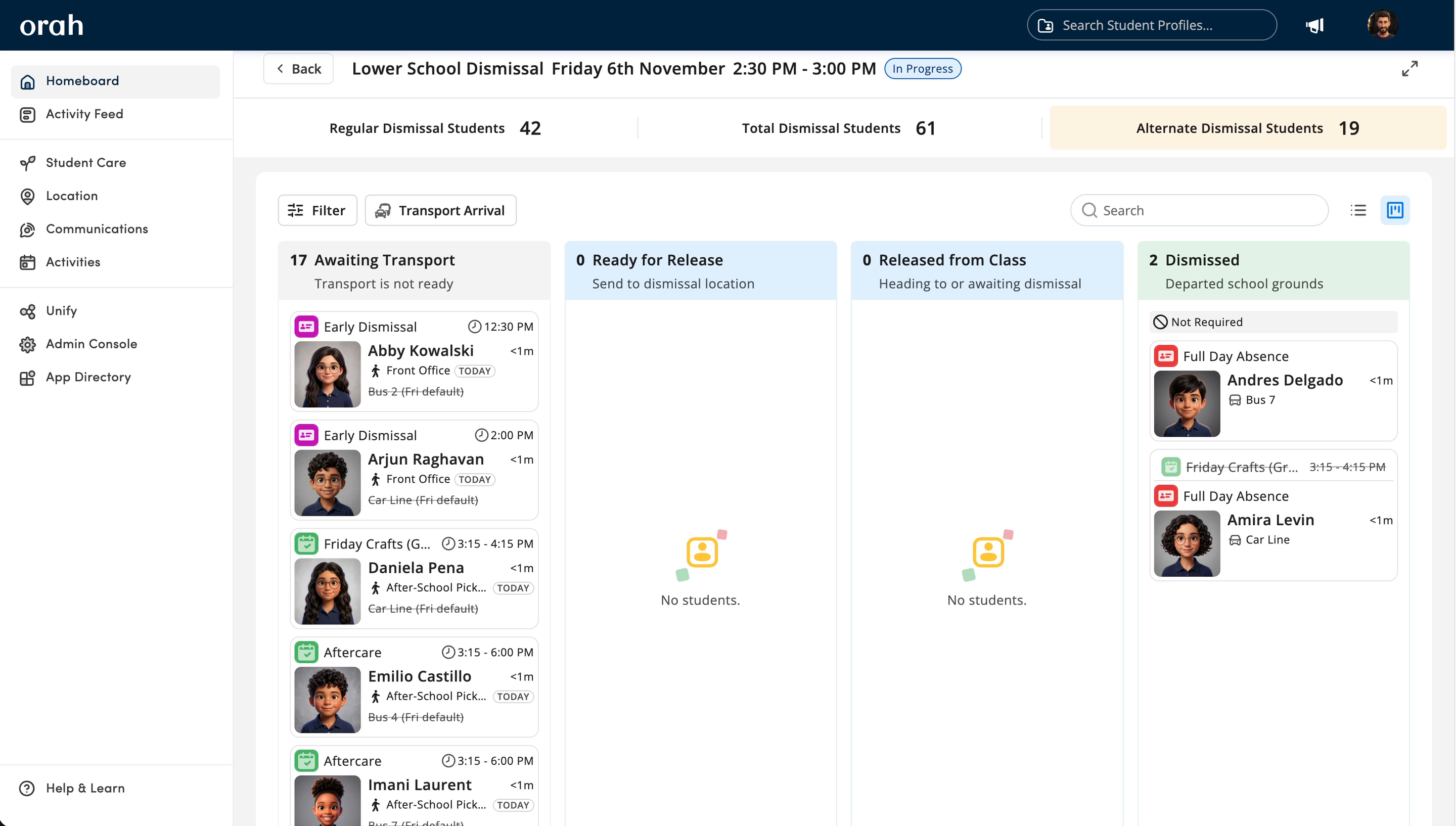
Every student appears on one live board and moves through four stages: Awaiting Transport, Ready for Release, Released from Class and Dismissed.
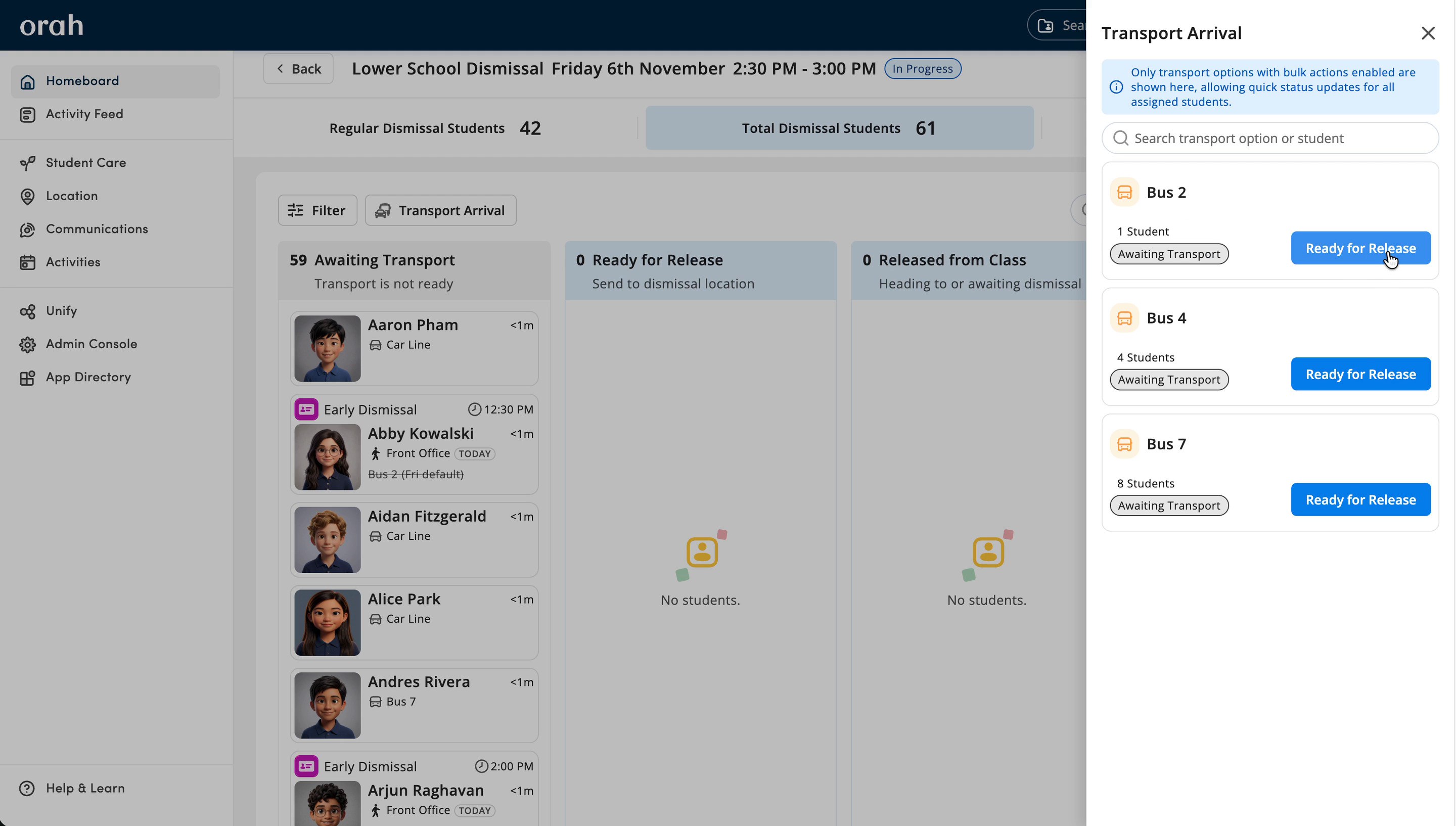
Teachers filter to their class and release students as they leave the room. When a bus arrives, one tap moves all its riders forward. Each card shows how long a student has been waiting, so anyone stuck stands out, and updates appear instantly on every device.
Verifying Every Pickup
Parents can announce their arrival from the Orah Family App to bring the children they are collecting forward on the board. Schools decide whether to allow this, or to have staff confirm every arrival with a QR scan instead.
Each approved pickup contact also has a personal QR code in the app. Staff scan it at the car line, and Orah checks the adult is approved for that student before confirming the handover.
Parents can add a designated contact for the day, like a grandparent, who gets their own QR code by email or text, no app needed. Schools that need a signature can capture one at handover.
When Plans Change
Early Dismissal passes, Full Day Absent passes and after-school events handle the exceptions automatically.
A student with an Early Dismissal pass for a 1:30 PM appointment, or going from soccer to Aftercare until 6:00 PM, moves to an alternate dismissal at the right time.
A student on a Full Day Absent pass is marked Not Required, and if a pass is cancelled the student goes straight back to their usual plan.
What Everyone Sees
Admins get one place to set up dismissal and a full record of every change and handover, exportable for any day for audits and incident follow-up.
Teachers see where each student is headed and release them from the classroom, without stepping out to check.
Dismissal staff know who is coming, who is waiting and who has gone, with less time on the radio confirming plans.
Parents stay in control of how their child gets home and know when they're on the way.
Because Dismissals uses the same students, contacts, passes and attendance as the rest of Orah, each dismissal updates the student's location, so the school always knows who is still in its care.
If you need to run an emergency roll mid-dismissal, students who have already gone home show as off campus, with no reconciling against paper lists.
Getting Started
To start using Dismissals, you'll first need to speak with your Customer Success Manager (CSM). They'll show you Dismissals using your own school's setup, talk through how dismissal works for you today, and explain pricing and how to enable it for your school.
Once it's enabled, setup is just a few steps, and your CSM can help along the way:
Set your handover rules: who can pick up, whether signatures are required, and what parents can change.
Create transport options and schedules: the ways students get home, and the days and times each schedule runs.
Add student plans: set each student's default plan, or import them all at once by CSV.
Connect passes and events: add dismissal settings to any pass types or events that should trigger an alternate dismissal.
Invite families: bring parents into the Orah Family App so they can see their child's plan and use their pickup QR code.
Run practice dismissals: walk staff through a few practice runs before your first live day, so everyone knows their part, from releasing students in class to scanning QR codes at the car line.