Handle Late Attendance Updates Your Way
The Snapshot
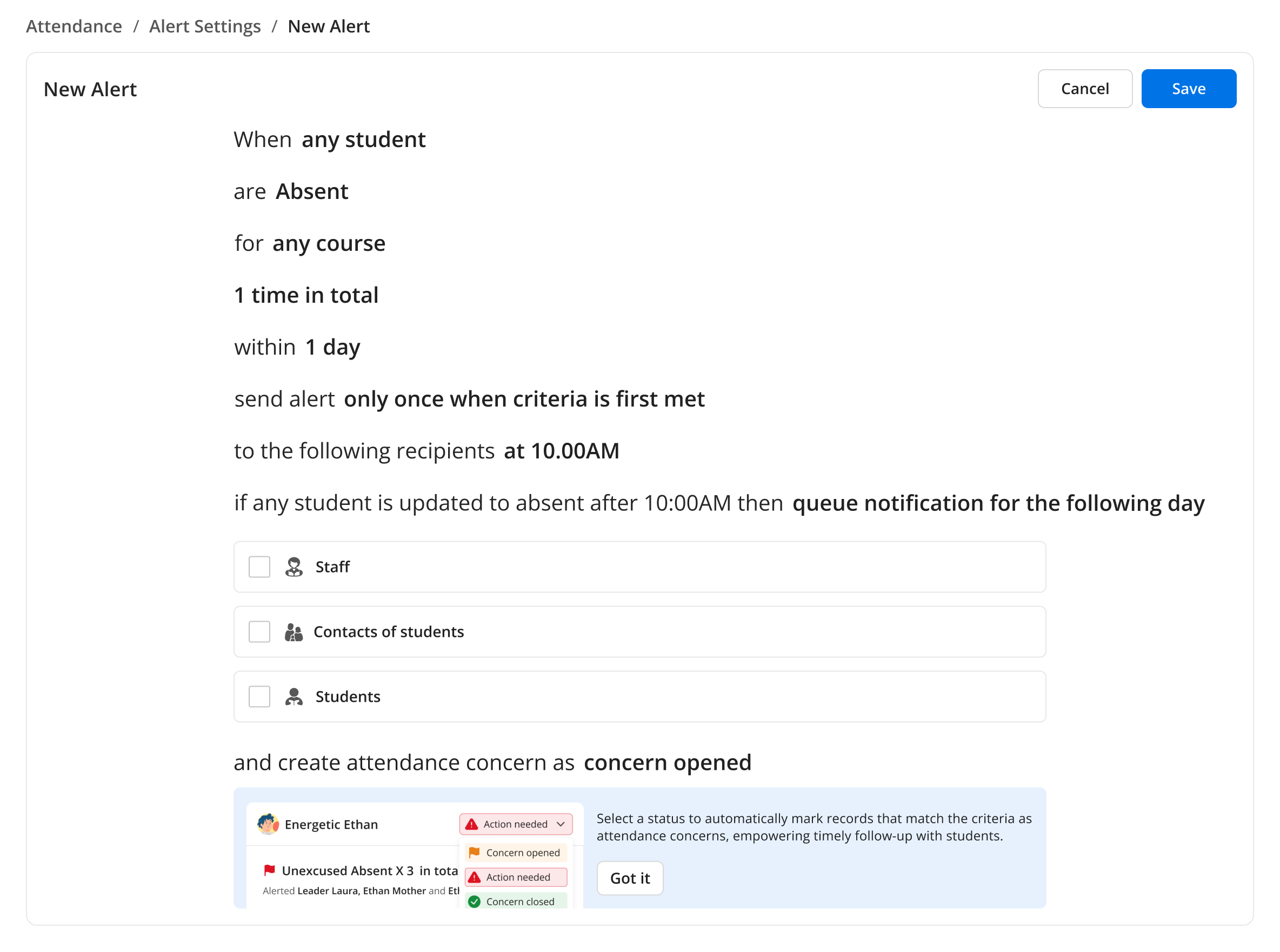
Scheduled Attendance Alerts now include a setting for what happens when a student's attendance changes after an alert was already sent. Queue it for the next scheduled send, deliver it right away, or open a concern for staff — without notifying families.
What's New
When configuring a Scheduled Attendance Alert, you'll now see a setting for late attendance updates — cases where a student meets the alert criteria after the scheduled send time has already passed. Choose from three options: queue for the next scheduled send (the existing default), send immediately, or open a concern for staff to track without sending a notification. All existing alerts keep the queue-for-next-send behaviour unless you change it.
Why It Matters
Every school handles late attendance updates differently. Some want families notified straight away; others prefer to keep things internal or wait for the next scheduled send. This setting puts that call in your hands — so your alerts work the way your school does, not the other way around.
Next Steps
Go to Monitor settings and open your Scheduled Attendance Alerts
Find the late attendance update setting
Choose your preferred option: queue for next send, send immediately, or open a concern
Save — existing alerts stay on the current default until you update them
Not sure which option fits your setup? Reach out to your CSM — they can help you think it through.