Name Your Attendance Alerts, with Smart Suggestions
Demo
The Snapshot
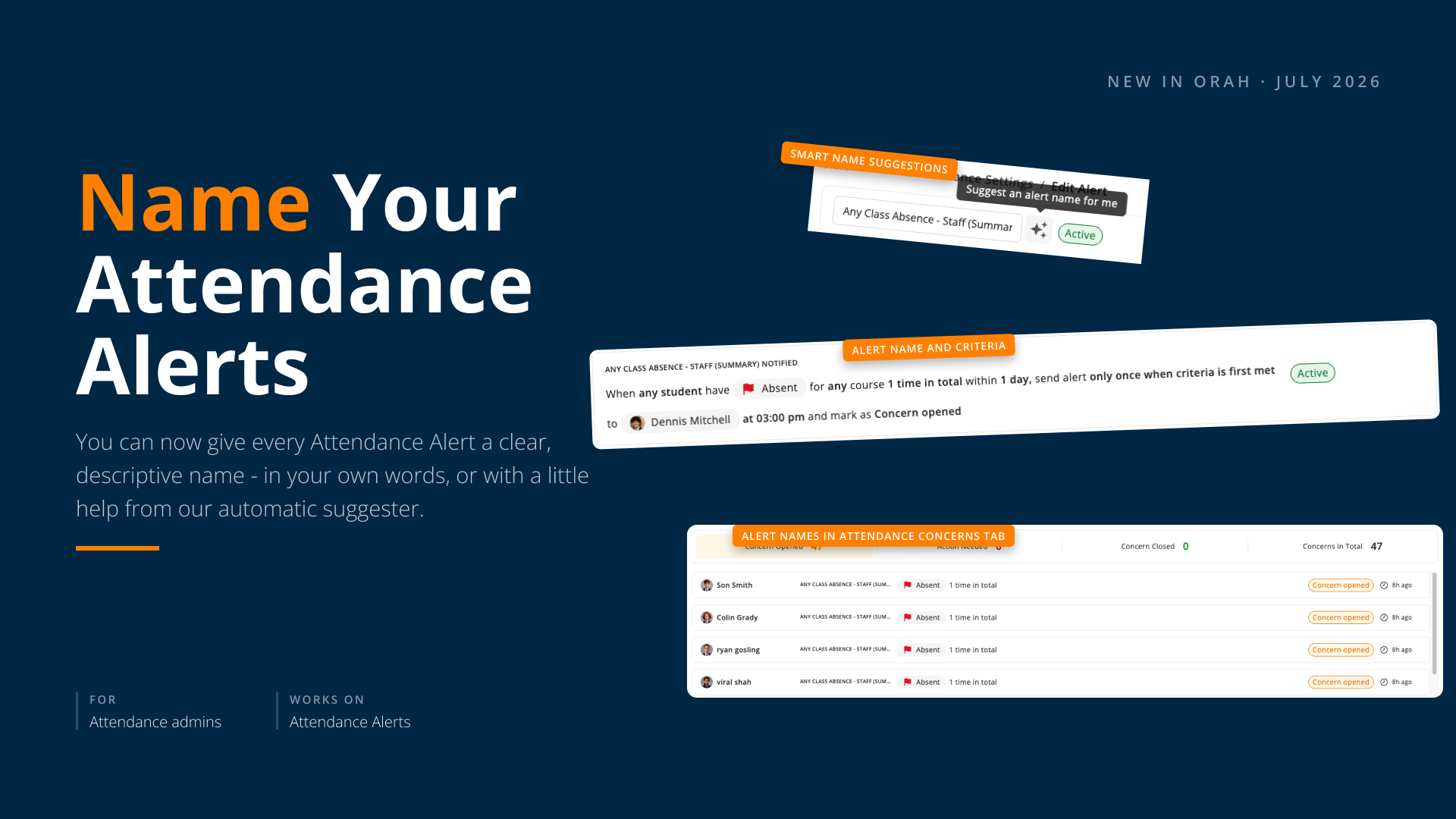
You can now give every Attendance Alert a clear, descriptive name — in your own words, or with a little help from our automatic suggester. When you create or edit an alert, write one yourself using your school's own terms, or click to generate a suggestion based on its conditions, frequency, timeframe, student scope, and recipients. That name then shows up everywhere the alert appears, so it's obvious at a glance what each one does.
What's New
In Attendance Settings, every alert now has a Name field. Write your own using the language your school already uses, or click to generate an AI suggestion drawn from the alert's conditions, frequency, timeframe, student scope, and recipients. AI suggestions adapt to your school's own naming style over time — wording, casing, and formatting included — so they read like your team wrote them. Once set, the name appears in Attendance Settings, Alert History, Attendance Concerns, and the alert's own record.
Why It Matters
Once you've got several alerts running for different year levels, absence patterns, or time windows, a clear name means anyone on your team can scan Alert History or Attendance Concerns and know immediately what triggered it — no need to open each one to check. Because AI suggestions pick up your school's own naming style, new alerts stay consistent with the ones you've already named, even as more staff set them up over time. It's a small change that keeps your whole team speaking the same language around attendance.
Next Steps
Open Attendance Settings > Alert Settings and select the alert you want to name
Click edit
Type your own name, or click to generate an AI suggestion
Adjust the suggested name if you like, then save
Repeat for other alerts whenever it suits you — existing alerts stay unnamed until you update them
Give it a try next time you're reviewing your alerts. Questions? Reach out to your CSM.